Project Documents: The Contract Now Lives Where the Project Is
 Robert Reiz | July 17, 2026 | 04:55 UTC
 The auditor is on site and asks for the signed offer for the "Warehouse Migration" project. You know it exists. You just don't know where any more. In the mailbox of the colleague who set the project up and has since moved to another team? On the shared drive, in a folder whose structure nobody has maintained for three years? As an attachment in a chat thread?
You will find it. You always find it. The only question is how long it takes — and how often you repeat that search over a year.
The project itself has been in ZEIT.IO all along: budget, hours, expenses, invoices. Only the documents that the project rests on lived somewhere else. Not any more.
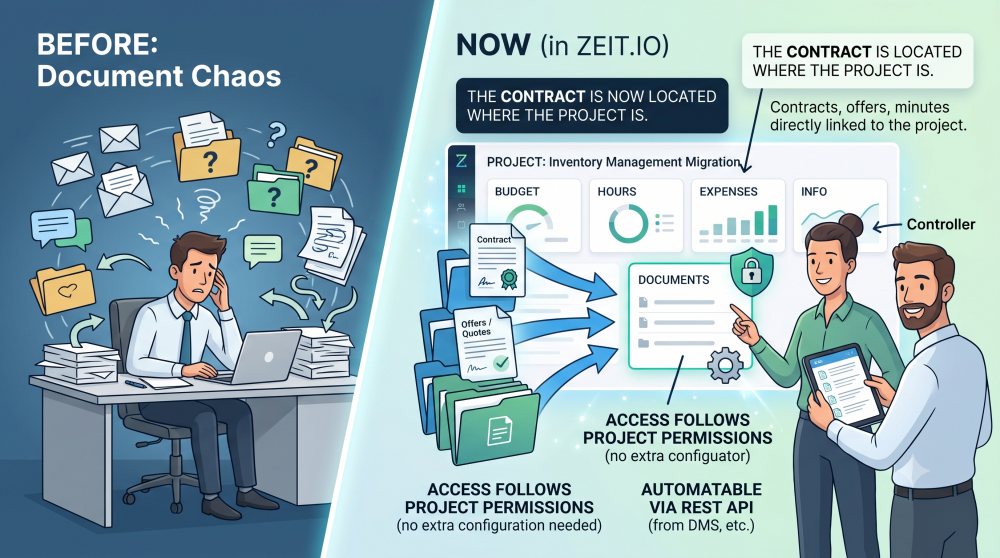
What's new?
Every project in ZEIT.IO now has its own "Documents" area. You upload the files that belong to the project — and there they stay. Linked to the project, visible to everyone who is allowed to see the project anyway.
Offers, signed contracts, acceptance protocols, statements of work, change requests, meeting minutes, certificates: everything you might need to produce again later.
How it works
Open a project. In the side menu, directly below "Expenses", you will find the new entry "Documents".
You see an overview of every document on the project — with name, file size and creation date. Above the table on the right sits the "Upload new document" button.
The form is deliberately short:
| Field | Required? |
|---|---|
| File | yes |
| Name | no — leave it empty and the file name is used |
| Description | no |
That's it. Pick the file, save, done.
The documents also appear as their own section on the project detail page — alongside members, approvers and notifications. Anyone getting an overview of a project sees its documents without having to go looking for them.
The name is optional — and that's deliberate
It sounds like a detail. In practice it decides whether a tool gets used at all.
Someone uploading a document wants to upload it — not stop and think of a name first. That is exactly the point where people give up and drop the file back onto the shared drive instead. So the name is optional: leave the field empty and ZEIT.IO uses the original file name.
Offer_Warehouse_Migration_final_v3_signed.pdf is rarely a beautiful name. But it is honest, it is there instantly, and it is infinitely better than a document that never got uploaded at all.
If you do give it a meaningful name, the overview shows that name — and underneath it, smaller, the actual file name. So you see both: what the document is called and which file is really behind it. If the two are identical, the file name is left out; nobody needs it twice.
The description is where you put what a file name can never carry: "Countersigned by Mr Weber on 12 March, supersedes version 2." Six months from now, that is the sentence that matters.
Who can see what?
Project documents follow the permissions you already maintain — there is no new permission system to configure:
- Anyone who can read a project sees its documents and can open them.
- Anyone who can edit a project can upload, change and remove documents.
Which also means: a project only a small circle can see has documents only that circle can see. For contracts and commercial terms, that is exactly the boundary you would expect.
What you can upload
Almost anything: PDF, Word, Excel, PowerPoint, images, archives. There is no catalogue of permitted formats for you to maintain.
There are two limits:
15 MB per file. That comfortably covers contracts, protocols and scanned signatures.
No executable web formats. Files such as .html, .js, .css or .svg are rejected. The reason is security: files like these could execute code in the browser. It is a deliberate restriction — and one you will never run into in practice, because nobody sends an offer as an HTML file.
Delete or unlink? Two different things
The action column offers four icons: View, Edit, Delete and Unlink. The last two sound similar but are not — and the difference is worth knowing before you click:
| Action | What happens |
|---|---|
| Delete | The document and the file are removed permanently. There is no recycle bin. |
| Unlink | Only the link to the project is released. The file remains stored. |
Unlink exists for the case where a document is attached to the wrong project and you want to detach it rather than destroy it — because retention rules say so, for instance.
In fairness, that is only half the story today. An unlinked document is indeed kept, but right now it can no longer be reached through any screen, because the organisation-wide document overview does not exist yet. It is in preparation — that is where you will find unlinked documents again and reassign them. Until then: only unlink when you genuinely no longer need the document on that project. Both actions ask first; read the confirmation.
For your IT team: there's an API too
If documents at your company don't get created by hand but come out of another system — a DMS, a contract tool, an e-signature service — the feature is fully available through the ZEIT.IO REST API and documented under Org/Projects.
Documents can be uploaded, read, updated and removed automatically. A signed contract can land on the right project the moment it is signed, without anyone downloading and re-uploading it. That is a job for your IT team — but it is possible, and the rules are the same as in the interface.
Summary
| Before | After |
|---|---|
| Project documents lived in mailboxes, on drives, in chats | Documents live on the project |
| Search when someone asks | Open when someone asks |
| Access via folder permissions nobody maintains | Access follows the project permissions |
| Manual only | Also automated via the REST API |
The feature is available immediately — no setup, no configuration. Open your next project, click "Documents" in the side menu, and upload the offer you went hunting for at the last audit.
Next time, you'll know where it is.