Timesheet Approval Made Easy: How the Approval Workflow Works in ZEIT.IO
 Robert Reiz | 15. Juni 2026 | 21:07 UTC
 The Problem: Open Timesheets Nobody Notices
Sound familiar? A team member has logged their hours and submitted them for approval – but weeks later it turns out nobody ever looked at the timesheet. The approver was on holiday, missed the email, or simply forgot to respond. The result: delayed invoicing, confusion in controlling, and frustrated employees.
ZEIT.IO solves this problem with a well-designed approval process including an automatic reminder system – while giving you full control over when and how often reminders are sent.
How the Approval Process Works
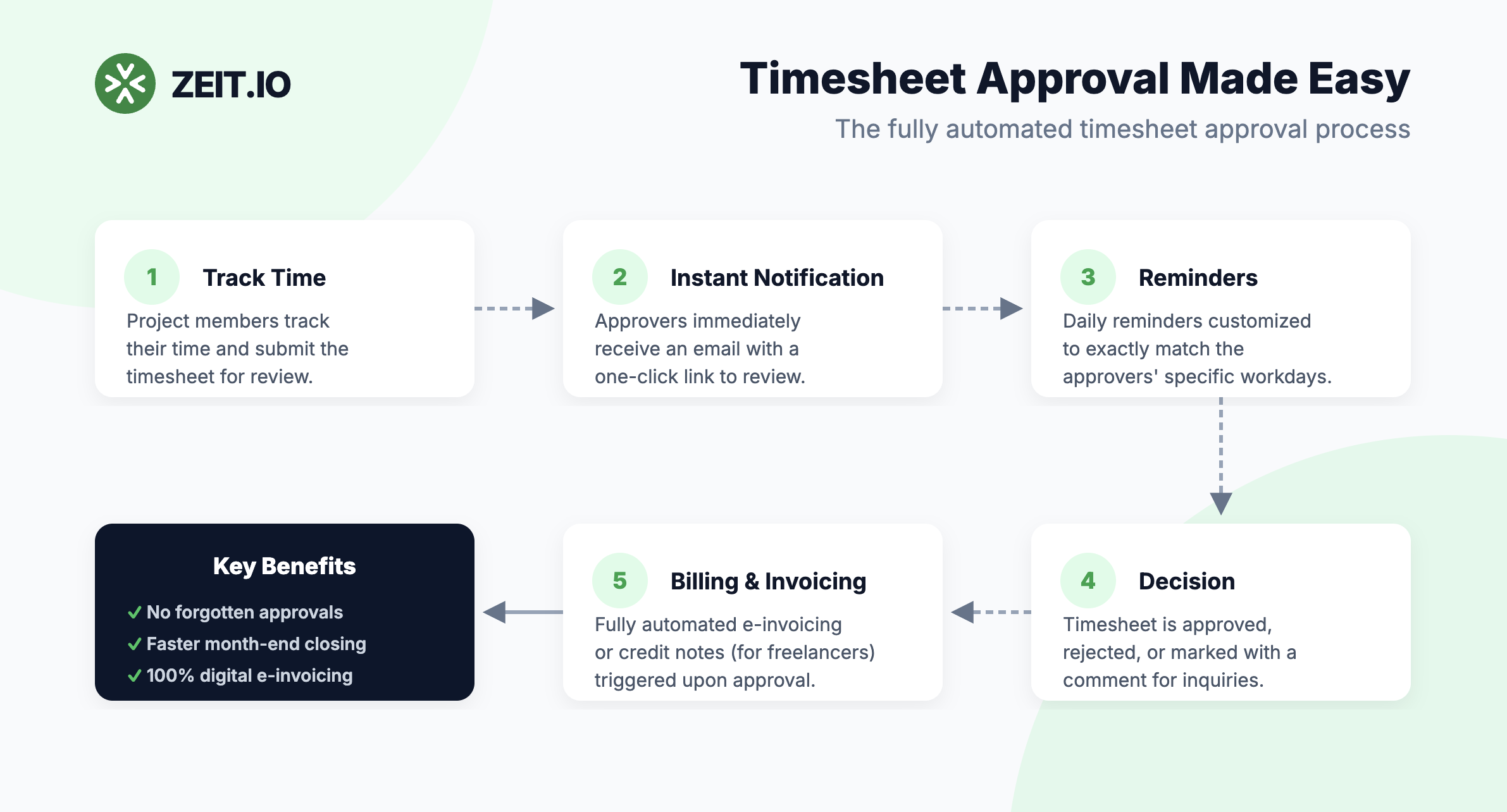
Step 1: Log Time and Request Approval
Project members log their working hours directly on the project. When they're ready, they submit their tracked hours for approval – either for a specific period (e.g., an entire month) or for selected entries.
ZEIT.IO automatically creates a timesheet from these entries – a clear summary of all submitted time records.
Step 2: Approvers Are Notified Instantly
At that very moment, all approvers assigned to the project receive an email notification:
"A new timesheet is ready for review. Click here to open it."
The email contains a direct link to the timesheet – no searching for the login, no navigating through menus. One click and the approver is on the right page.
Step 3: Approve, Reject, or Comment
The approver has three options:
- Approve – the timesheet is accepted and the employee is notified
- Reject – with an optional comment explaining the reason
- Comment – ask questions without making a final decision
Step 4 (optional): Automatic Billing After Approval
With the approval, the process in ZEIT.IO doesn't necessarily end. Optionally, the system can trigger billing fully automatically after a timesheet is approved – without any manual intervention from controlling or accounting.
Automatic E-Invoice to the Client
ZEIT.IO can convert the approved hours directly into an e-invoice and send it automatically to the client assigned to the project. The flow is then:
- Timesheet is approved
- ZEIT.IO creates the invoice based on the approved hours and the project's hourly rate
- The e-invoice is automatically sent to the client
No manual creation, no forgetting, no delay between approval and invoicing.
Automatic Credit Note for Freelancers (Self-Billing)
When the hours were performed by a freelancer, ZEIT.IO offers a particularly elegant solution: the automatic credit note, also known as self-billing.
ZEIT.IO creates a credit note on behalf of the client for the freelancer – meaning the freelancer no longer needs to write their own invoice. This brings concrete benefits for everyone involved:
| Benefit | For whom |
|---|---|
| No need to write their own invoice | Freelancer |
| No incoming invoice to review and post | Accounting / Controlling |
| Consistent, automated format | Both sides |
| Immediate billing after approval | Management / Project Lead |
Practical example: An IT freelancer works 80 hours for your company in March. They submit their timesheet, you approve it as the client – and ZEIT.IO automatically creates a credit note for 80 × hourly rate and posts it. The freelancer sees the credit note in their ZEIT.IO account and doesn't need to do anything else. Accounting saves the manual review of an incoming invoice.
The Automatic Reminder System
What happens when a timesheet isn't processed on the same day? This is where ZEIT.IO's intelligent reminder function kicks in:
As long as a timesheet has neither been approved nor rejected, ZEIT.IO automatically sends daily reminder emails to all responsible approvers.
This is particularly valuable for:
- Controlling: Month-end closes can't be blocked because a timesheet is sitting somewhere unnoticed
- HR: Holiday cover is automatically notified too (when multiple approvers are assigned)
- Project managers: No more manual follow-ups needed
Configure Reminders Individually: Weekdays per Approver
Not every approver works five days a week. An external client may only be reachable Tuesday through Thursday. A team lead might not be in the office on Fridays.
ZEIT.IO lets you define per approver on which weekdays reminder emails should be sent.
Practical Example
Situation: The "Webshop Relaunch" project has two approvers:
| Approver | Working days | Configuration in ZEIT.IO |
|---|---|---|
| Maria Schulz (internal project lead) | Mon–Fri | Reminders: Mon, Tue, Wed, Thu, Fri |
| Thomas Bauer (external client) | Tue–Thu | Reminders: Tue, Wed, Thu |
Thomas receives no reminders on Fridays or Mondays because he's not available then anyway. The emails won't pile up unread in his inbox and won't come across as spam.
How to Set It Up
For each approver in the project, there is a simple checkbox overview:
☑ Monday
☑ Tuesday
☑ Wednesday
☑ Thursday
☐ Friday    ← disabled
☐ Saturday  ← disabled
☐ Sunday    ← disabled
This approver only receives reminders on the checked days.
Organisation-Wide Defaults: Set Once, Apply Everywhere
If your organisation has many projects, it would be tedious to configure the weekdays individually for every new approver. ZEIT.IO therefore offers organisation-wide default values for reminder days.
Where to Find the Setting
In the Organisation Settings under the "Approvers" section (Org Settings → Approvers), you can define which weekdays are activated by default for new approvers.
How It Works
Every new approver object is automatically initialised with the organisation's default values. This means:
- Existing approver configurations remain unchanged
- New approvers automatically inherit the organisation defaults
- Individual adjustments per approver are possible at any time
Practical Example
Situation: Your company works a 4-day week (Mon–Thu). Friday is not a working day.
Solution: In the organisation settings, you disable Friday, Saturday, and Sunday as the default. All new approvers will automatically only be reminded Mon–Thu – without having to set this individually for each approver.
Multiple Approvers per Project: Redundancy and Flexibility
A project can have multiple approvers. This brings several advantages:
Holiday cover: If approver A is on holiday, approver B still receives the reminders and can step in.
Four-eyes principle: For sensitive projects, you can require that two people review a timesheet – e.g., a team lead and controlling.
Role separation: You can define who is allowed to approve timesheets and who can approve travel expenses/reimbursements (separate permissions: perm_timesheets and perm_expenses).
Summary: What This Means for Your Organisation
| Challenge | Solution in ZEIT.IO |
|---|---|
| Timesheets get overlooked | Instant email notification when a new timesheet is submitted |
| Approver forgets to respond | Automatic daily reminders until a decision is made |
| Approver not always reachable | Reminder days configurable individually per approver |
| Many projects, lots of configuration effort | Organisation-wide defaults for new approvers |
| Approver unavailable | Multiple approvers per project possible |
| Month-end close blocked by an open timesheet | All approvers reminded daily – no timesheet stays open |
| Manual invoicing after approval | Automatic e-invoice to the client directly after approval |
| Freelancer has to write their own invoice | Automatic credit note (self-billing) – freelancer doesn't need to do anything |
| Accounting reviews incoming invoices from freelancers | Eliminated entirely through automatic credit notes |
Conclusion
The timesheet approval system in ZEIT.IO is designed so that open approvals don't fall through the cracks. Through automatic reminders, flexibly configurable weekdays per approver, and organisation-wide defaults, CEOs, team leads, controlling, and HR always have a clear overview – without any manual follow-up.
And for those who want to eliminate the last manual step too: use automatic billing. Timesheet approved, invoice sent – done. For companies that regularly work with freelancers, the automatic credit note is an additional efficiency gain that saves effort on both sides.
Less administrative friction, faster approvals, punctual and automatic invoicing.
Do you have questions about configuring the approval process in your organisation? Contact us at support@zeit.io.