Two weeks in Croatia, zero reminder emails: absences in ZEIT.IO
 Robert Reiz | August 19, 2026 | 12:58 UTC
 You are lying on a beach. Your phone buzzes: "You did not track any time yesterday." The next morning, again. And the day after that, once more. Ten working days of holiday, ten reminders about work you are deliberately not doing.
Back at your desk, the second half of the problem arrives. Your client opens the timesheet and sees two weeks of nothing. Nothing explains it. So somebody asks, you answer, somebody ticks it off — for something everyone already knew.

From now on you enter your absence once, and both of those take care of themselves.
Where to find it
The freelancer menu now has an entry called Absences — right next to Times, Timesheets and Expenses. It holds a list of your absences and a button for a new one.
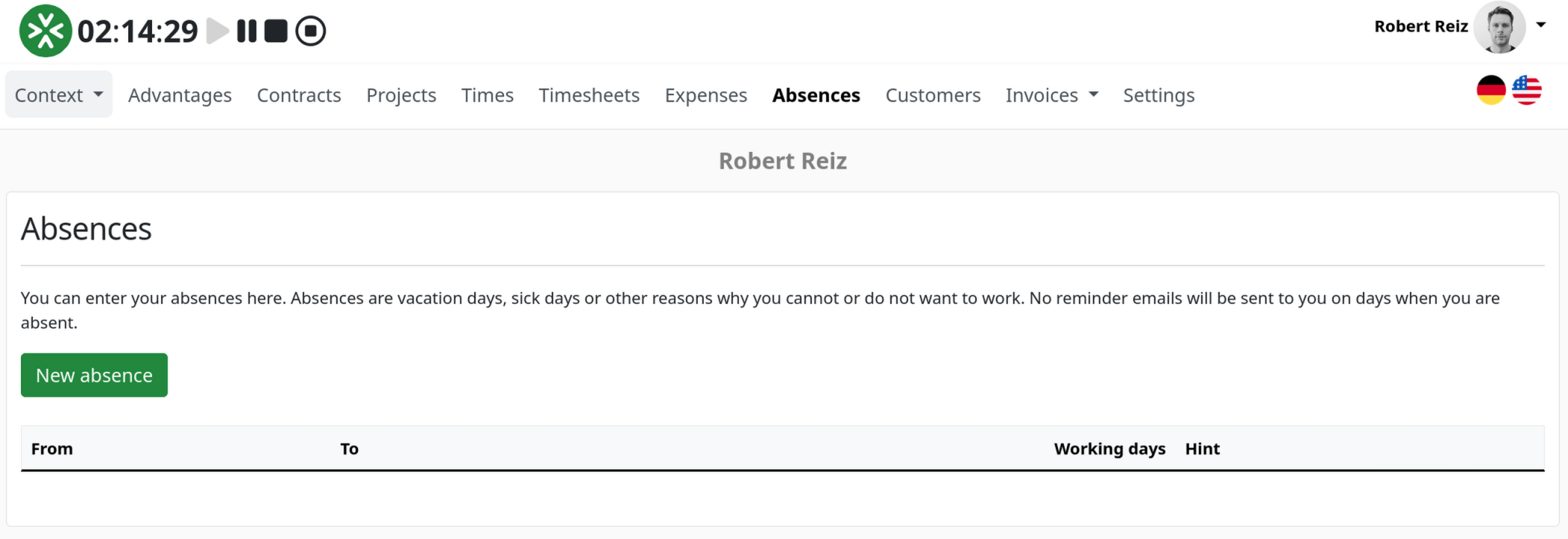
The form has three fields: From, To, and an optional Hint. That is all. No approval workflow, no request, no sign-off loop. You are self-employed — you report, you do not ask.
Once you save, ZEIT.IO turns the range into individual absence days and shows you the count in the overview.
Why weekends are counted
Enter Monday to Sunday and you get seven absence days — not five.
That is a deliberate decision. Plenty of freelancers work weekends: the Saturday evening deployment, the Sunday workshop, the week that simply does not start on a Monday. If you are booked on a Saturday, you are also absent on a Saturday. A system that quietly trims weekends away would short-change exactly those people by half their absence.
Wherever working days are what actually matter — when comparing against a reminder period — ZEIT.IO filters Saturdays and Sundays back out on its own. You never have to think about it.
The reminders go quiet
This is the part you notice on holiday, and you notice it because nothing happens.
ZEIT.IO reminds you to track your time. How often is set by your contract: daily, weekly or monthly. Every one of those reminders now takes your absences into account:
| Rhythm | What happens |
|---|---|
| Daily | If you were absent yesterday, no email is sent. |
| Weekly | If you were absent for the entire previous week, no email is sent. |
| Monthly | If you were absent for the entire previous month, no email is sent. |
For the weekly and monthly reminders, ZEIT.IO counts the working days in the period and compares them against your absence days. If the absence covers the whole period, the reminder is dropped. A single day off in the middle of a working week does not silence the weekly reminder — and rightly so, because you still want it for the other four days.
There is nothing to configure. It is enough that the absence is on record.
The timesheet explains itself
Until now, days off were simply gaps in a timesheet. Now they are rows.
Every day you were absent shows up in the timesheet with the date, the weekday and the label "Absent". An unexplained hole becomes a documented statement.
Two details that make the difference in daily use:
- The rows stay visible. The timesheet has a view switcher that hides empty weekdays. Absence days are exempt from it — they are not empty, they are explained.
- Everyone sees the same thing. The label does not only appear in your own view, but also where your client reviews and approves the timesheet. Precisely where the follow-up question would otherwise have come from.
What does not appear on the timesheet is your hint text. It only ever says "Absent". Holiday, illness or training — the timesheet documents that you were unavailable, not why.
Your client is notified automatically
The moment you save an absence, ZEIT.IO sends an information email in the background — to every organisation you currently hold an active service contract with. Three running contracts with three clients means all three get informed, each exactly once.
The email contains your name, the period, the number of days and your hint — in the language of that organisation. Sending runs as a background job: your save click finishes immediately, you are not waiting on a mail server.
For organisations: under Settings → Notifications you can specify a dedicated recipient address for absence notifications — typically a distribution list, so that project management and resource planning both receive it. If nothing is set there, notifications go to all administrators of the organisation. Every notification sent is also recorded in the organisation's audit log.
Because your hint text lands in that email at the client's end, one piece of advice: the field is optional, and a diagnosis does not belong in it. "Holiday" or "unavailable" is perfectly enough.
Straight into your calendar
An absence that only lives in ZEIT.IO does not help much if you plan your days somewhere else. So the detail page of every absence offers direct links for Google Calendar, Outlook, Office 365 and Yahoo — one click and the period is in your calendar.
If you use a different calendar, download the ICS file. It works with Apple Calendar, Thunderbird and anything else that understands the standard. The entry is marked private.
Plans change
The client calls, the project is on fire, two weeks turn into one. No problem: the bin icon in the overview — or the delete button on the detail page — removes the absence along with all of its days. The reminders start up again, the timesheet rows disappear.
Enter the same period a second time and ZEIT.IO rejects it instead of creating a duplicate.
At a glance
| Before | After |
|---|---|
| Reminder emails even on holiday | Reminders know about your absences |
| Days off are gaps in the timesheet | Days off are rows labelled "Absent" |
| Telling clients by hand | Automatic email to every active client |
| Maintaining the absence twice in your calendar | One click to Google, Outlook, Office 365, Yahoo or ICS |
| Weekend work impossible to represent | Weekends count, working days calculated correctly behind the scenes |
Getting started
- Click Absences in the menu.
- Choose New absence, enter From and To, add a hint if you want one.
- Save.
That is it. The rest — counting the days, silencing the reminders, labelling the timesheet, informing your clients — happens without you.
Because a holiday only really starts once the software clocks off too.
Questions?
If you have questions about absences, about the reminder settings in your contracts, or about setting up the distribution list on the organisation side, write to us at support@zeit.io — we are happy to help.