From Bank Statement to Payment Status: Bank Integration in ZEIT.IO
 Robert Reiz | September 07, 2026 | 05:02 UTC
 The question "has invoice 2026-0142 actually been paid?" turns into a journey in most companies: open the banking portal, set the date range, search for the amount, scan the reference field for the invoice number, switch back to the ERP, tick the box. With 40 open items a month, that is half a working day — and between reconciliations the payment status in your system is always slightly out of date. With the predictable result that dunning letters go out to customers who paid weeks ago.
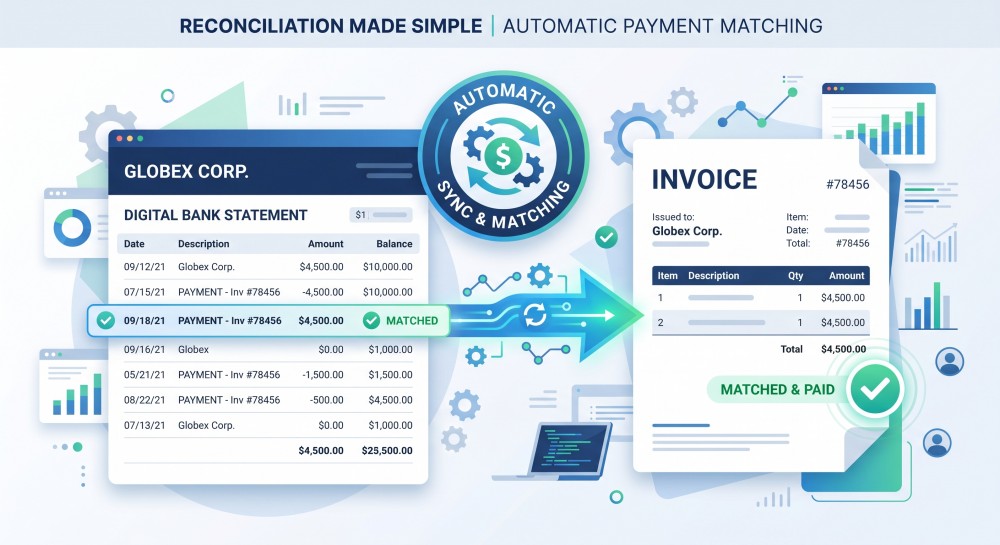
ZEIT.IO now connects directly to your bank accounts. Balances and transactions arrive automatically every hour, and ZEIT.IO links those payments to the matching documents on its own — outgoing invoices, incoming invoices and credit notes. Open items close themselves.
What you get out of it
| Before | With bank integration | |
|---|---|---|
| Liquidity | One login per bank | Every account and balance on one page, including the total |
| Payment status | Maintained by hand, always somewhat stale | Updates itself every hour |
| Open items | Spreadsheet reconciliation at month end | A running list of payments not yet assigned |
| Dunning | Risk of chasing invoices that are already paid | Paid invoices are recognised as paid |
| Traceability | "Who changed that status?" | Every status change is written to the audit log |
Where to find it
Bank integration is an organisation feature. It is not available in a personal freelancer account, so switch to your organisation view first.
From there you will find it in the main menu under Accounting → Bank accounts, right next to outgoing and incoming invoices. There are two prerequisites: the Invoices module has to be active in your organisation settings, and your account needs the "banking read" permission — otherwise the menu entry stays hidden. More on permissions further down.
Connecting an account: once, in under a minute
Click Add bank account and enter the name of your bank. More than 3,000 banks across the EU are connected — from the large retail and direct banks through savings banks and cooperative banks to state banks and neobanks. Accounts held at banks in other EU countries can be connected too, which matters if you run subsidiaries or foreign currency accounts elsewhere in Europe. ZEIT.IO then forwards you straight to your bank's own login page. You sign in exactly as you always do — your credentials, your usual TAN method — and grant consent for account access. After that you land back in ZEIT.IO.
We never see your banking credentials. Authentication happens exclusively at your bank, through the PSD2 interface. All ZEIT.IO receives is a time-limited access token. That token is not stored in plain text either: access tokens and technical credentials are encrypted, the token expires after two hours and is fetched again when needed.
Right after you confirm, ZEIT.IO starts the first fetch, and a few minutes later a reconciliation run across the last three months. So you do not return to an empty page, but to a statement that is already populated and largely reconciled.
You can connect several banks and any number of accounts — operating account, reserve account, foreign currency account. Each account is listed with its description, category, IBAN, balance, currency and the time of the last update, with the total across all accounts underneath.
Read only. Never pays.
One point that management tends to raise first, so let us get it out of the way: bank integration is strictly read-only. ZEIT.IO retrieves balances and transactions. It cannot initiate a transfer, set up a standing order or collect a direct debit. That capability simply does not exist in the system.
Payments still go out through the SEPA export: you generate a payment file, upload it in your banking portal and release it there. The final release stays where it belongs — with you and your bank. Bank integration merely closes the loop: whatever you paid via the SEPA export shows up shortly afterwards as a transaction and assigns itself to the incoming invoice.
Automatic reconciliation
Once an hour, ZEIT.IO checks every open document against every transaction not yet assigned. The logic is deliberately conservative:
The unambiguous match. ZEIT.IO looks for a transaction whose amount matches the gross amount of the document to the cent and whose reference field contains the document number. It links only if there is exactly one such transaction. If there is none, or several — two invoices for the same amount, say — nothing happens and the case is left for a human. A wrongly assigned payment costs more than a manual click.
The bulk transfer. When a customer settles several open invoices with a single transfer, the one-to-one check does not fire. So ZEIT.IO also asks: are there several open invoices for the same customer whose combined total matches one transaction, and does the reference contain all of the corresponding invoice numbers? If so, that one transaction is linked to all the invoices involved.
Both directions. Reconciliation works for all four document types:
| Document | Expected transaction |
|---|---|
| Outgoing invoice | Incoming payment for the gross amount |
| Incoming invoice | Outgoing payment for the gross amount |
| Credit note to a freelancer | Outgoing payment for the gross amount |
| Credit note received | Incoming payment for the gross amount |
Incoming invoices get a second attempt on top of that: some banks put the reference not in the purpose field but in the counter party field. ZEIT.IO looks there as well.
All amounts are compared internally as integers in cents. Rounding differences from floating point arithmetic — the classic failure of home-grown reconciliation — cannot occur here.
What happens behind a link
A link is more than a tick box. ZEIT.IO records a payment against the document, using the booking date as the payment date, and recalculates the document's payment status from that. "Open" becomes "paid"; with partial payments the document stays open accordingly.
Every one of those status changes is written to the document's audit log, in plain language and with a timestamp. Removing a link does the same in reverse: the payment is deleted, the status recalculated, the change logged. For an audit — internal or external — you can therefore always demonstrate why an invoice is recorded as paid, and when that happened.
And the rest? The worklist
Automation never solves 100%. Bank fees, salaries, tax prepayments, transfers between your own accounts, a customer paying with an odd early-payment discount — none of these have a document in the system, or no unambiguous match. Which is exactly why every transaction carries two separate states:
- Linked — at least one document is attached to the transaction.
- Solved — the transaction has been dealt with.
ZEIT.IO sets "solved" automatically as soon as the sum of the linked documents hits the transaction amount exactly. Everything else you mark as solved yourself — including several transactions at once via the selection column. Bank fees are off your desk in two clicks.
The "Unsolved" filter is therefore the real worklist for accounting: everything that still needs a human, and nothing else. An empty list is the goal of the month-end close.
You can filter further by booking month, quarter or year, by bank, by counter party, by reference, and by direction (incoming/outgoing) and link status. The count and total of the filtered transactions sit above the table at all times — handy for summing up everything received from one customer in a quarter.
Assigning by hand: the paperclip
For anything automation cannot resolve unambiguously, click the paperclip in the transaction row. A dialog opens with four tabs — outgoing invoices, incoming invoices, credit notes, credit notes received. Each tab shows the documents already linked at the top and a searchable list of candidates below: by document number, by recipient, by payment status.
You can attach several documents to one transaction — the bulk transfer case — and unlink at any time. The payment record, the status and the audit log entry all follow automatically.
Permissions
The banking area has two permissions of its own, independent of every other permission in ZEIT.IO:
- Banking read — see accounts, balances and transactions.
- Banking write — connect bank accounts, assign documents, mark transactions as solved.
That allows the usual division of labour: your tax advisor or external bookkeeper gets read access, while assignment stays in-house. Anyone holding neither permission does not see the area at all.
How current the data is
The automatic fetch runs hourly for every connected organisation. If you would rather not wait — because an important payment is due, say — the refresh icon next to an account triggers an immediate fetch straight from the bank.
Transactions already imported are never created twice: each one carries the bank's unique identifier, and a database index guarantees it exists exactly once per organisation. So refresh as often as you like.
One quirk of PSD2 worth knowing: your consent for account access is time-limited and has to be renewed periodically. That is a legal requirement and applies to every banking software. Renewal takes the same short path as the initial connection — redirect to the bank, sign in, confirm.
What the month-end close feels like now
The first day of the new month used to look like this: download the statements, put the open item list next to them, reconcile line by line, enter the payments in the system, prepare the dunning run and hope you are not about to chase someone who has already paid.
With bank integration, the reconciliation has already happened — hourly, in the background, all month long. What remains is the "Unsolved" filter: usually a manageable list of fees, salaries and a handful of special cases. You work through it until the list is empty. After that the open item list is dependable, and the dunning run only reaches the people who genuinely have not paid.
You will find bank integration in your organisation under Accounting → Bank accounts. If you have questions about the setup, or cannot find your bank, just get in touch.