Add all employees to a project in one click
 Robert Reiz | October 01, 2026 | 11:51 UTC
 An internal project kicks off: rolling out a new tool, preparing for an audit, or simply the "Internal training" project where everyone books their training hours. Staffing is settled quickly – everyone is in. Then comes the tedious part: add member, select contract, enter the period, set the budget, save. And again. And again. With 25 employees, that's 25 trips through the same form, with the same values.
With this release, you do it in one step.
What's new?
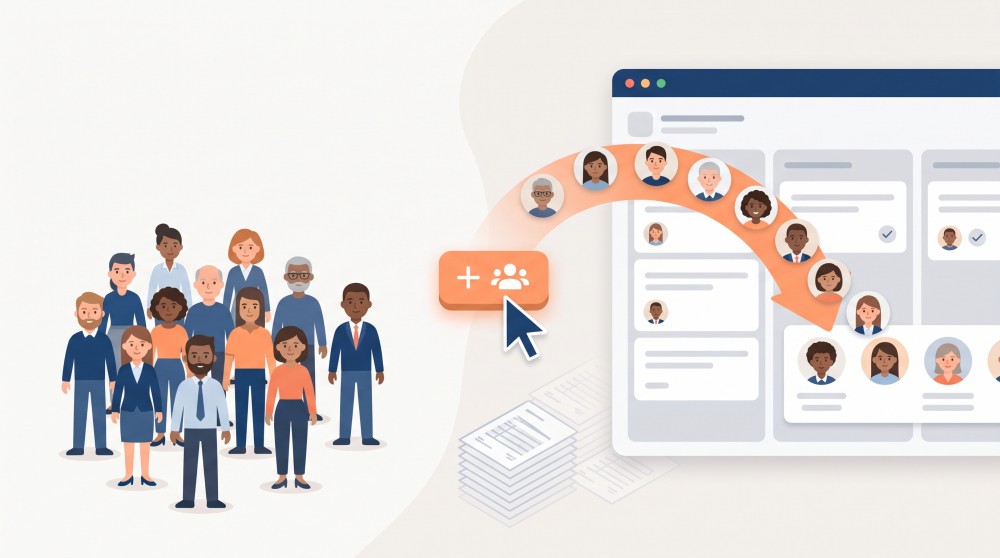
In the Members section of a project, you'll find a new link directly to the left of "Add member": "Add all employees". It opens a form where you define the settings once. When you save, ZEIT.IO adds all active employees of your organisation as project members, with exactly these settings.
The form matches the familiar form for a single member – just without the parts that only make sense for one person:
| Setting | Single member | All employees |
|---|---|---|
| Contract | selected by you | not needed – ZEIT.IO uses each employee's employment contract |
| Billing rate | all categories | one rate for everyone, pre-filled with the project's Ø Sales hourly rate |
| Hour budget & travel budget | yes | yes, applies to every member |
| Membership period | yes | yes, applies to every member |
| Activity admin | yes | yes |
| Approval of times & expenses | yes | yes |
| Signed proof of performance | yes | yes |
| SAP integration | yes | not available |
| Delegation name | entered by you | not needed – see below |
Who counts as an "active employee"?
Everyone with an accepted employment contract that is running today. Suppliers and freelancers are not included, and neither are employees whose contract has expired or has not been accepted yet, nor deleted users.
If someone has several running employment contracts, that person is still added only once – with the contract that started first. That way, no duplicate entries end up in the member list.
Who is skipped – and why
Not every employee automatically fits every period. Instead of producing errors, ZEIT.IO skips two cases:
- Already a member: Anyone who is already a member of the project in the selected period is not added a second time. A membership in a different, non-overlapping period does not get in the way.
- Contract doesn't cover the period: If the employment contract starts after the membership begins, or ends before it ends, the person is skipped. Unlimited contracts cover any period.
After saving, you see at a glance how many employees were added – and which ones were skipped, by name. So you know exactly where you may want to step in by hand, for example with an adjusted period via "Add member".
A handy side effect: you can safely run the action a second time, for instance after new colleagues have joined. Existing members are skipped, and only the new ones are added.
The billing rate
The billing rate is the hourly rate you charge your customer. The form suggests the Ø Sales hourly rate you entered in the project's master data. You can adjust it before saving.
Two things matter here:
- The billing rate is not visible to the employees. It serves your invoicing and controlling, not the time tracking.
- Only billable projects have a billing rate. If the project is not marked as billable – as most internal projects are – ZEIT.IO does not show the field at all.
Only the default rate is set. The rates for remote, on-site and travel stay empty. If individual members need different rates, maintain them afterwards directly on the member, as usual.
Mirrored projects
If you work for a customer who also uses ZEIT.IO, the times booked by your members are passed on to the customer's parent project – under a delegation name. For a single member, you enter this name by hand.
When adding all employees, ZEIT.IO does this for you: each employee's own first and last name is used as the delegation name. On the customer's side, everyone appears under their real name. As usual, the approval setting on mirrored projects follows the parent project.
What else happens
Each new member is treated exactly as if you had added them individually:
- Email notification: All added employees receive the usual email letting them know they've been assigned to the project.
- Default notifications: The default notifications configured in your organisation are created for every member.
- Complete audit trail: Every assignment appears with name and contract in the project's audit log.
Emails and notifications are processed in the background. Saving therefore takes only a moment, even for large teams.
How it works
- Open the project and scroll to the Members section
- Click "Add all employees"
- Set the billing rate, budgets, period and roles
- Save
The feature is available to everyone who is allowed to edit projects. For projects whose members come from a contract, the link is not shown – just like "Add member".
At a glance
| Before | After |
|---|---|
| Add every person individually | All active employees in one step |
| Type the same values over and over | Define the settings once |
| Maintain delegation names by hand on mirrored projects | The employee's own name is used automatically |
| Avoid duplicate assignments by hand | Existing members are skipped automatically |
Internal projects, trainings, audits, company events – wherever everyone takes part, you can skip the busywork from now on.
Questions or feedback? Write to us at support@zeit.io – we're happy to help.