Two Factors, Zero Lockouts: The Reworked 2FA Setup in ZEIT.IO
 Robert Reiz | 07. September 2026 | 03:30 UTC
 Friday afternoon. You click "Activated" in your settings, hit save, and a QR code appears. Your phone is in the other room, your meeting starts in two minutes. You close the tab and think: I'll do it later.
There is no later. That QR code is shown exactly once, for security reasons — and two-factor authentication is armed from that moment on. At your next login, ZEIT.IO asks for a six-digit code that nobody on earth can produce. Including you.
That moment can no longer happen.
The two-factor setup has been rebuilt from the ground up: it only switches on once you have proven that your app actually works. And it can no longer be switched off with a single click.
Briefly, for anyone who has never had "2FA" explained
Your password is something you know. Knowledge can be stolen, guessed, phished, or harvested from somebody else's data breach — and you will not notice any of it.
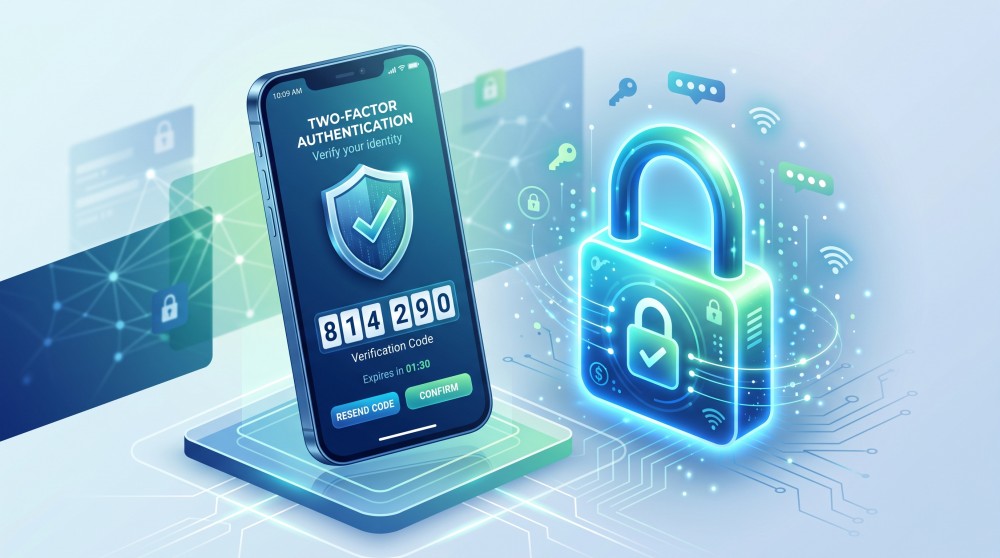
The second factor is something you have: your smartphone. On it runs a small app — Google Authenticator, Microsoft Authenticator, or something comparable — that displays a fresh six-digit number every 30 seconds. At login, ZEIT.IO asks for that number in addition to your password.
Here is the crucial part: the app does not fetch those numbers from the internet. It computes them itself, offline, from a secret exchanged once between your phone and ZEIT.IO during setup. Someone who has your password but not your phone is standing in front of a door they cannot open.
Why this matters especially for ZEIT.IO
"It's only a time tracker." That is the most common misconception. Take a look at what a ZEIT.IO account actually holds:
- Contracts and hourly rates — what you agreed with which client.
- Salaries — employment contracts carry compensation figures.
- Invoices and credit notes — including bank details.
- Client and personal data — names, addresses, mailing lists, and possibly absence periods.
- Payment files — the SEPA export produces credit transfer files for online banking.
Unauthorized access to such an account does not mean "somebody sees my hours." In the worst case it means: somebody changes the IBAN on an invoice shortly before the payment run goes out. That fraud has a name — invoice manipulation — and it is the reason a time-tracking account deserves the same protection as online banking itself.
There is a second angle. Personal data lives here either way, and whoever processes it owes "appropriate technical measures" under GDPR. Two-factor authentication is the best known of them — and the only one that reliably renders a stolen login worthless.
And because almost everyone reuses passwords: the password that eventually surfaces in some unrelated web shop's breach is, statistically, alarmingly often the work password too. Attackers replay those lists automatically, millions of attempts, no staff required. The second factor ends that attack before it begins.
What changes in practice
1. Activation only after a successful test
The new flow has three steps:
- Enter your password. Before any QR code appears, you confirm with your current password that it is really you.
- Scan the QR code. ZEIT.IO shows the code and, below it, the secret in text form — in case your app prefers typing over scanning.
- Type in a code from the app. Only when those six digits check out is 2FA switched on for your account.
The most important part is invisible: nothing on your account is changed until step 3. The secret exists only briefly, inside your current session. Close the browser, click "Cancel", or simply run out of patience — everything stays exactly as it was. No half-configured 2FA. No locked door without a key.
If the setup was abandoned and you try to finish it in a stale tab anyway, ZEIT.IO says so plainly: "The activation was cancelled or has expired. Please start again." A sentence that tells you what to do, instead of a cryptic error.
2. Turning it off requires the second factor
Previously, one click on "Deactivated" plus save was enough. Anyone sitting at a briefly unattended, logged-in machine could strip the protection in five seconds — leaving the account behind nothing but a password again.
Deactivation now requires a valid six-digit code from your authenticator app. No phone, no switching off. The second factor now protects itself as well.
3. A new phone, without the cold sweat
New handset, cracked screen, app deleted by accident: the "Generate new QR code" button walks through the same three steps — password, scan, confirm.
And because the new key is only adopted on confirmation, your existing app stays valid until then. You can abandon the process halfway through without locking yourself out. Exactly the safety net you want when you are standing there with two phones and a half-configured authenticator.
4. An interface that shows the actual state
Instead of two radio buttons that left you guessing which one was in effect, there is now a single plain line:
Status: Activated — or — Status: Deactivated
Underneath it sit only the buttons that make sense in that state: with 2FA on, "Deactivate" and "Generate new QR code"; otherwise simply "Activate". The input field appears after the click and is focused immediately — you start typing without having to click into anything first. Mistype the code and you stay right where you are, with a clear message and an empty field, instead of being thrown back to the start.
Below the password field you will also find the password reset link — in case that is precisely the moment you realize you are no longer sure of your own password.
5. Everything is logged
Every change to your second factor lands in the audit log of your user account, which you can review yourself under Settings → Audit log:
| Action | Entry |
|---|---|
| 2FA switched on | activated 2FA |
| 2FA switched off | deactivated 2FA |
| New QR code confirmed | generated a new 2FA QR code |
An entry you did not cause yourself is an alarm bell — and the entire reason such logs exist.
6. Automated guessing runs into a wall
Starting an activation and deactivating are limited to five attempts per minute. A human never notices. A script systematically working through passwords or codes loses its only advantage: speed.
What this means for you
As a freelancer, your money hangs on this account. Timesheets, credit notes, your bank details. You have no IT department to clean up an incident for you — you are the IT department. Five minutes of setup is by far the cheapest insurance policy available to you.
As an employee, you are protecting more than yourself: your view holds project data, client names, and possibly other people's hours. The most common route into a company does not run through the firewall but through one convincing email to one particular person. Fall for that email with 2FA enabled, and you still have not lost anything.
As a manager or administrator, you hold the broadest permissions in the system — contracts, salaries, invoice approvals, exports. That makes your account the most rewarding target in the whole organization. Two things pay off immediately: switch 2FA on for yourself, and talk about it in your team. A team where everybody uses 2FA is never an accident — it is the result of somebody going first.
Set up in five minutes
- Install an authenticator app on your smartphone — Google Authenticator or Microsoft Authenticator, both free.
- In ZEIT.IO, go to Settings → 2FA.
- Click Activate and enter your current password.
- Scan the QR code with the app and save the entry.
- Type the six digits the app shows into the field and click Confirm.
Done. The status flips to Activated, and your next login asks for password and code.
One tip from practice: store the displayed secret once in a safe place — in your password manager, not on a sticky note on your monitor. With it you can set up the app on a new device without needing the QR code again. Many authenticator apps now also offer their own cloud backup; that checkbox is worth ticking too.
At a glance
| Before | Now |
|---|---|
| 2FA armed instantly, QR code visible only once | Armed only after a confirmed code from the app |
| Abandoning setup halfway = locked out | Abandoning setup = nothing changed |
| Activation with one click, no password | Password required before every activation |
| Deactivation with one click | Deactivation only with a valid code |
| A new QR code replaced the old one instantly | The old access stays valid until the new one is confirmed |
| Two radio buttons with no clear state | Status display with matching actions |
| No traceability | Every change in the audit log |
Questions?
If you have questions about the setup, if you lost your phone, or if you want to roll 2FA out across your team, write to us at support@zeit.io — we are happy to help.
The best time to switch on the second factor is the day before somebody has your password. Unfortunately, you never find out which day that is.