Importing Customer Master Data via CSV: 300 Customers in Minutes, Not Days
 Robert Reiz | 29. Juli 2026 | 12:42 UTC
 You're switching systems — moving off an old CRM, out of a spreadsheet that grew over the years, or away from the accounting software that's being retired. And now you're facing the same task everyone faces at that point: 300 customers, each with an address, tax number, payment terms, contacts — and the prospect of typing all of it into the new system by hand.
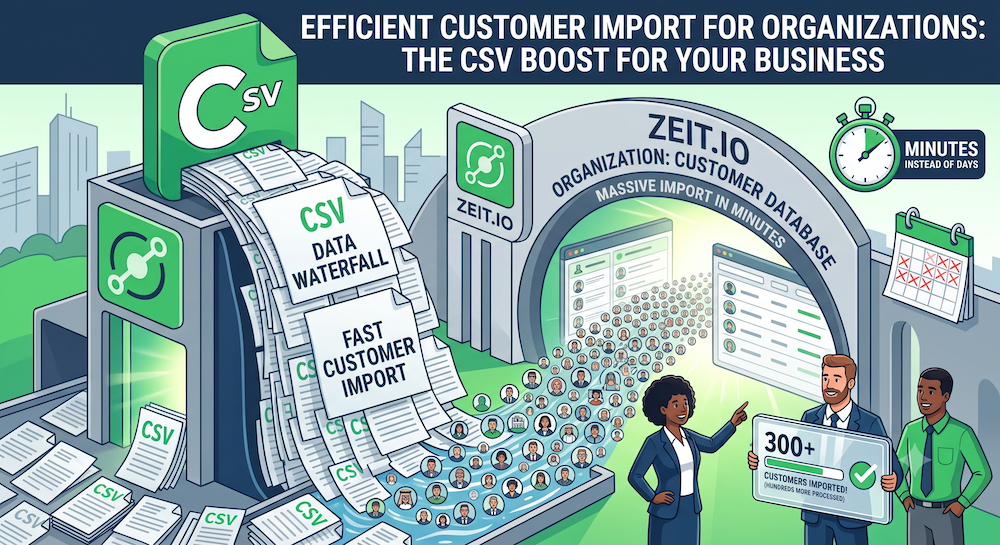
That's exactly what the new CSV import for customer data in ZEIT.IO is for. Customers, contact persons and departments can now be uploaded as a CSV file instead of being created record by record.
What's new?
On the customer overview, on contact persons and on departments, you'll now find a "CSV Import" button in the top right. Three areas, three import screens:
- Customers – company name, address, tax and VAT ID, payment terms, contact details and more
- Contact persons – a customer's contacts, including salutation, position and invoice/dunning recipient flags
- Departments – organisational units within a customer, also with their own recipient settings
All three work the same way: pick a file, upload it, done.
How the three imports work
Customers
Open Customers, click "CSV Import", choose your file and start the import. ZEIT.IO creates a new customer for every row in the file and shows a running count of how many records have already been processed.
Contact persons and departments
These two imports work per customer: the file carries the identifier of the customer that the contact persons or departments belong to. ZEIT.IO looks up the matching customer by that identifier and attaches every row in the file to that one customer.
The format: you already know it
You don't have to learn a new CSV structure. The import format matches the export format exactly. If you're unsure how the file should be laid out, export your existing customers from ZEIT.IO as CSV, open that file as a template, and fill it with the data from your old system. Column order and headers will then line up automatically.
While the import runs, ZEIT.IO keeps you informed of progress, successful records and errors — row by row, naming the affected line number whenever something doesn't fit.
One important limitation: import creates, it doesn't update
The CSV import is currently meant for new records only. If your file contains a customer whose identifier already exists in ZEIT.IO, that record is not overwritten or updated — the row is skipped with an error message, and the rest of the file keeps processing.
For a first-time migration of your customer data, that's not an issue. It matters if you upload the same file a second time — say, because the import was interrupted or you're not sure everything came through: customers that were already imported won't be duplicated, they'll be reported as an error instead — that's by design and protects you from duplicates. To change existing customer data, keep doing that directly on the customer record in ZEIT.IO.
Who can import?
The import follows the same permissions you already assign for customers — there is no extra permission for you to set up:
- Only people with write access to customers (
perm_customers_write, or admin rights) see the import button and can use it. - Anyone with read-only access to customers can still view customer data, but cannot import a file.
In practice, for HR, Controlling, CRM and Accounting this means: whoever on your team can already create and edit customers can now also import bulk data — without any change to how permissions are assigned.
At a glance
| Before | After |
|---|---|
| Customers, contact persons and departments created one by one, by hand | Records imported as a CSV file |
| Migrating from an old system meant many hours of typing | Migrating means preparing a file, uploading it, checking it |
| No feedback beyond the finished result | Ongoing feedback, including the line number for any errors |
| Risk of duplicates on repeated uploads | Existing customers are skipped automatically |
The feature is available immediately. Export an existing customer as CSV to see the format, fill in your data — and import it via the new button on the customer overview.