Auto-Copy and Auto-Close: projects that extend themselves and clean up after themselves
 Robert Reiz | 08. September 2026 | 05:03 UTC
 There are two project chores nobody enjoys, which is precisely why they keep being postponed.
The first one arrives at the end of every quarter. Forty projects expire on the 30th of June, and forty identical projects have to exist on the 1st of July — same members, same activities, same approvers, same budgets, only with a new identifier and a new duration. That is half a day of clicking, and it lands in exactly the week that is already taken up by the quarterly closing.
The second one never arrives at all. A project ended in March, but nobody pressed "Close". It still shows up in the project lists, its autoinvoice is still active, its budget still counts. After two years, half of the project overview consists of dead entries, and by then nobody dares to clear them out, because it is no longer obvious which of them might still be needed.
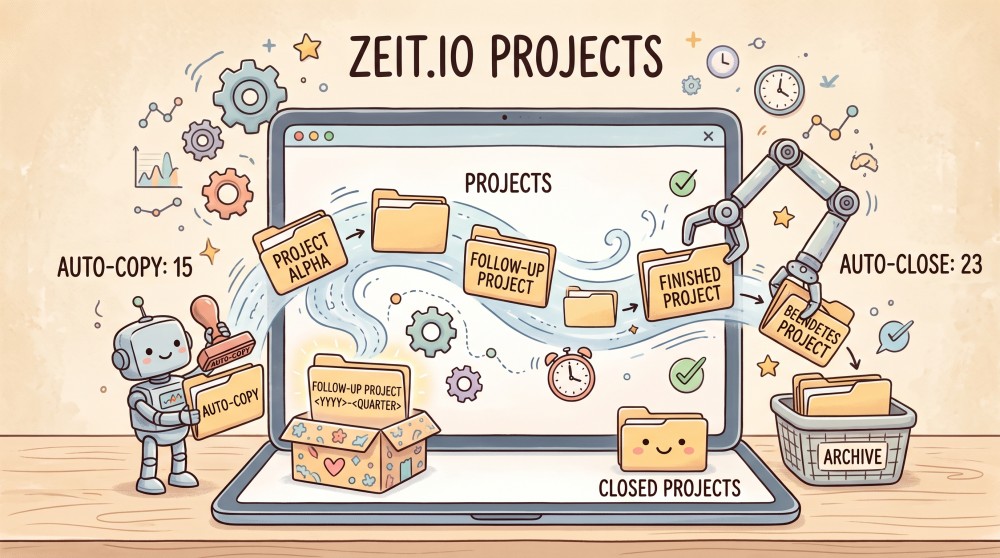
Both now have an automation: Auto-Copy and Auto-Close. You will find them in the project form, directly below one another, each in its own collapsible section.
Auto-Copy: the follow-up project creates itself
Enable the Auto-Copy section in a project, and ZEIT.IO creates the follow-up project automatically, one day after the project ends.
There are three things to set:
| Field | Meaning |
|---|---|
| Duration of the new project in months | How long the follow-up project runs. The default is 3 months. |
| Prefix for the new identifier | A building block placed in front of the identifier. |
| Suffix for the new identifier | A building block appended to the identifier. |
Prefix and suffix are not free text fields but placeholders, resolved at the moment the copy is made:
<YYYY>→2026<YYYY>-<M>→2026-07<YYYY>-<Quarter>→2026-Q3RANDOM5→ a five digit random number
At least one of the two — prefix or suffix — has to be set, otherwise ZEIT.IO will not save the setting. That is deliberate: without a distinguishing building block, every copy would carry the same identifier as its original.
An example
A project with the identifier DATA-PRIVACY ends on the 31st of March. Auto-Copy is active, with a duration of 3 months and the prefix <YYYY>-<Quarter>.
On the 1st of April, the project 2026-Q2-DATA-PRIVACY exists, running from the 1st of April to the 30th of June.
And because the new project inherited the Auto-Copy setting, 2026-Q3-DATA-PRIVACY appears on the 1st of July. The chain continues until somebody clears the checkbox. So you set up the quarterly extension once, not four times a year.
One important detail about the identifiers: ZEIT.IO replaces an existing building block instead of appending endlessly. 2026-Q2-DATA-PRIVACY becomes 2026-Q3-DATA-PRIVACY — not 2026-Q3-2026-Q2-DATA-PRIVACY. The separator you originally used is preserved as well: DataPrivacy_2026-Q2 becomes DataPrivacy_2026-Q3. Should an identifier be taken against all expectations, ZEIT.IO appends a random token so it stays unique.
What gets copied along
This is the part that actually eats the time when done by hand — and exactly the part that goes away. Carried over are:
- Members, with their billing rates and margins, adjusted to the new duration
- Activities including their budgets
- Labels
- Approvers
- Notifications
- Customer, along with invoice, offer and dunning recipients
- every project setting: mandatory comments, mandatory start/end times, mandatory activity, overbooking and so on
The budgets are properly reset in the process: hour, day and cost budgets are available in full again in the new project, and consumption starts at zero. You are copying the framework, not last quarter's consumption.
If you work with contractors through supplier contracts, the mirrored project on the contractor's side is created automatically as well. On the 1st of April, your external consultant finds their follow-up project in their time tracking just as naturally as your own employees do.
Two things ZEIT.IO deliberately does not copy: the autoinvoice configuration and the comments. The billing configuration is the one point where you should take a quick look when the follow-up project appears.
Auto-Close: the finished project clears itself away
The Auto-Close section below it works in the opposite direction. You set a checkbox and a number:
Close this project automatically some days after it ended.
Days after the end date: 30
With the checkbox set, ZEIT.IO checks daily which projects have passed their end date plus the configured number of days — and closes them. A project ending on the 31st of March is closed on the 30th of April with 30 days configured.
Anything from 1 to 365 days is allowed. While the checkbox is off, the day field is disabled.
Why a grace period instead of closing right away?
Because not everything is finished on the day a project ends. Time records are still being added, timesheets still need approval, the final invoice has not gone out yet. A project that closes the day after it ends creates more work than it saves, because it has to be reopened for every straggler.
30 days is the default because a full monthly closing fits inside it. If you want to tidy up faster, set 14 days; if you have a long approval loop, set 60.
What happens when a project is closed automatically
Exactly the same as when you click the Close button — no special logic, no half measures:
- The project is closed. It no longer appears in the active project lists, and nothing can be booked on it.
- The project's autoinvoice is closed as well. In practice this is the most valuable part: a forgotten, finished project with an active autoinvoice keeps producing automatic invoices that somebody then has to cancel.
- All active members are notified by email, each in their own language. Nobody is left standing in front of a project that vanished overnight.
- Every one of these steps is written to the project's audit log.
The audit log states explicitly that it was the automation:
auto closed the project 30 days after its end date
closed the project
closed autoinvoice(...)
notified member `Hans Mueller` about project closure
Missed runs are caught up
The automation does not ask "is today exactly day 30?" but "is day 30 in the past?". That has three practical consequences:
- A job run that fails catches up on the affected projects the next day.
- Set the checkbox on a project that ended two months ago, and it is closed on the next run — not at some point in the future.
- Shorten the period from 60 to 30 days on a project that ended 45 days ago, and the new period takes effect immediately.
⚠️ Auto-Close is active by default
Please read this paragraph before you move on.
Auto-Close is preset to 30 days and active — and not only for newly created projects, but for all of them. Projects created before this release, which have no Auto-Close setting stored yet, behave as if the checkbox were set.
In concrete terms: finished projects that have been sitting around open will be closed on the first run — including member notifications and closing of the autoinvoice. That is exactly the intended cleanup effect, but you should expect it rather than be surprised by it.
If a finished project is meant to stay open in your organisation — because billing or late entries are still pending, for instance — open it and clear the Auto-Close checkbox before the period expires. A closed project can be reopened at any time, but that will not recall the emails that went out.
Two limitations always apply:
- Organisation projects only. Freelancer projects have no Auto-Close interface and are not touched by the automation.
- Open projects only. Anything already closed is left alone and will not trigger a second wave of emails.
Both together: the full cycle without a single click
The real effect appears once you set both switches on a project. Take a quarterly project ending on the 31st of March, with Auto-Copy (3 months, <YYYY>-<Quarter>) and Auto-Close (30 days):
| Date | What happens | Who does it |
|---|---|---|
| 31 March | Project 2026-Q1-DATA-PRIVACY ends | – |
| 1 April | 2026-Q2-DATA-PRIVACY appears, with all members, activities and approvers, running until 30 June | ZEIT.IO |
| 1–30 April | Stragglers are added to the old project and approved, the final invoice goes out | You |
| 30 April | 2026-Q1-DATA-PRIVACY is closed, autoinvoice closed, members notified | ZEIT.IO |
| 1 July | 2026-Q3-DATA-PRIVACY appears | ZEIT.IO |
The two automations do not get in each other's way: the copy is made the day after the project ends, the closing happens weeks later. And copying happens only once — a project that already has a copy is not copied a second time, not even after a job restart.
Your only remaining task in this cycle is a look at the billing configuration of the new project.
What this saves in time
Let us work it through for an organisation with 40 quarterly projects — an order of magnitude we regularly see among our customers.
Extending one project by hand means: open the project, copy it, adjust the identifier, set the start and end date, reset the budgets, re-enter the members with the right rates and durations, create the activities, carry over approvers and labels, and check the mirrored project for contractors. Realistically that is 10 to 15 minutes per project, assuming nothing gets in the way.
| By hand | With Auto-Copy | |
|---|---|---|
| 40 projects per quarter | approx. 8 hours | 0 minutes |
| per year (4 quarters) | approx. 32 hours | 0 minutes |
That is close to a full working week per year — for a task where a single forgotten project member means somebody cannot book their hours on the 2nd of July and calls support.
Closing one project by hand is quick by comparison: open it, press the button, one minute. The problem is not the effort per project but the fact that nobody does it. The effort turns up later, and somewhere else:
- The cleanup campaign. At some point somebody notices that 120 finished projects are still open. Going through them, checking and closing them, is half a day to a full day — and it repeats every couple of years.
- Cancelled invoices. A finished project with an active autoinvoice keeps producing invoices. Each one has to be spotted, cancelled and explained to the customer. That is easily 30 minutes per case, and they are the least pleasant 30 minutes of the month.
- Misbooked time. An open project can be booked on. Hours that land on the March project in April have to be found and moved — often not before the invoicing run.
- Unusable reports. Project lists and budget reports that are half made up of finished projects cost a few minutes of sorting and filtering every time they are used. That adds up more quietly, but more reliably, than any cleanup campaign.
So Auto-Close saves less the minute of clicking than the hours created by that click never happening.
And the best part about both features: the effort disappears exactly where it was most expensive — at the start of the quarter and at the monthly closing, on the days with the highest load.
Everything stays traceable
Both automations write to the project's audit log. There you can see:
- who switched Auto-Copy or Auto-Close on or off, when, and which period they set,
- that a project was copied automatically, and where to (
auto-copied to 2026-Q2-DATA-PRIVACY), - in the new project, which original it came from,
- that a project was closed automatically, and after how many days,
- who was notified about the closure by email.
No project appears and none disappears without it being in the log. That is the prerequisite for trusting an automation in the first place.
What you should do now
- Review Auto-Close. It is active with 30 days, including for your existing projects. Go through the finished but still open projects once and clear the checkbox on those that are meant to stay open.
- Switch Auto-Copy on for your recurring projects. For every project you extend each quarter or each year anyway: open the project, expand the Auto-Copy section, set the checkbox, choose the duration and the prefix, and save. After that it happens by itself.
- Adjust the periods to your rhythm. 30 days is a default, not a law. If your billing is done by the 10th of the following month, 14 days will do.
You will find both in the project form, in the collapsible Auto-Copy and Auto-Close sections.
Questions? Write to us at support@zeit.io.